

Hiring Your First Employee
This guide walks you through hiring your first AI employee, from selecting a template to seeing them come online.
Before You Begin
Ensure you have everything ready:
Checklist
- Active subscription with available employee slots
- API key configured (Settings → API Keys) OR plan to use included credits
- Channel credentials ready:
- Telegram: Bot token from @BotFather
- Discord: Bot token from Developer Portal
- Slack: Bot token from Slack Apps
- Email: SMTP server credentials
- Whatsapp: Whatsapp enabled device to link the employee
Step 1: Navigate to Employees
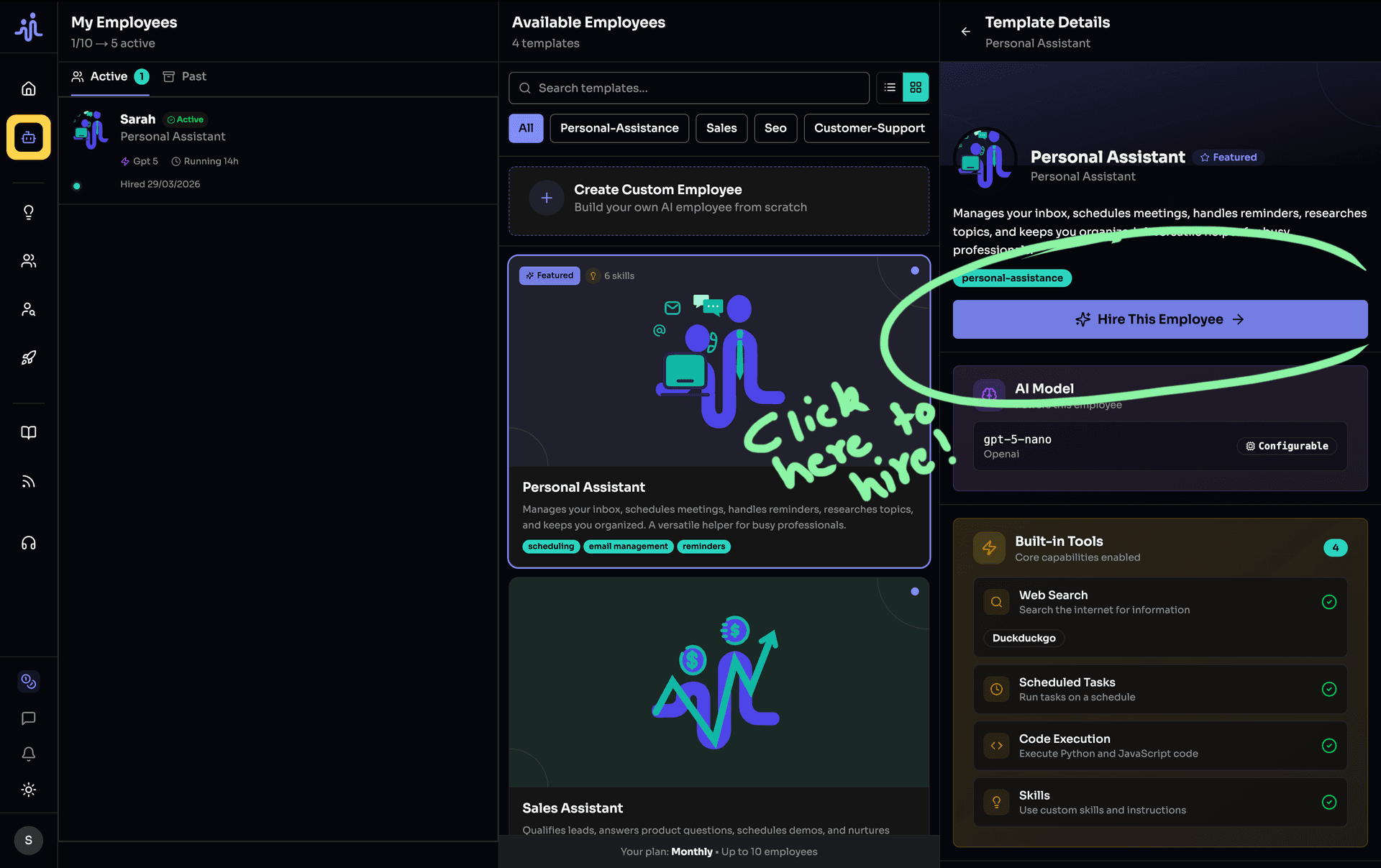
- Click Employees in the sidebar (or press
GthenE) - Choose a template or create a custom employee. Templates give you a pre-configured starting point. Browse by category or search.
- Click the Hire button
Step 2: Name Your Employee
Give your employee a memorable, descriptive name.
Naming Tips
Good names:
- "Alex Support" — Clear role identifier
- "Research Bot" — Functional description
- "Content Casey" — Memorable and fun
- "DevOps Helper" — Role-specific
Avoid:
- Generic names like "Bot 1" or "Assistant"
- Names you might confuse with other employees
- Overly long names
Step 3: Select AI Model
Choose the AI model that powers your employee's intelligence.
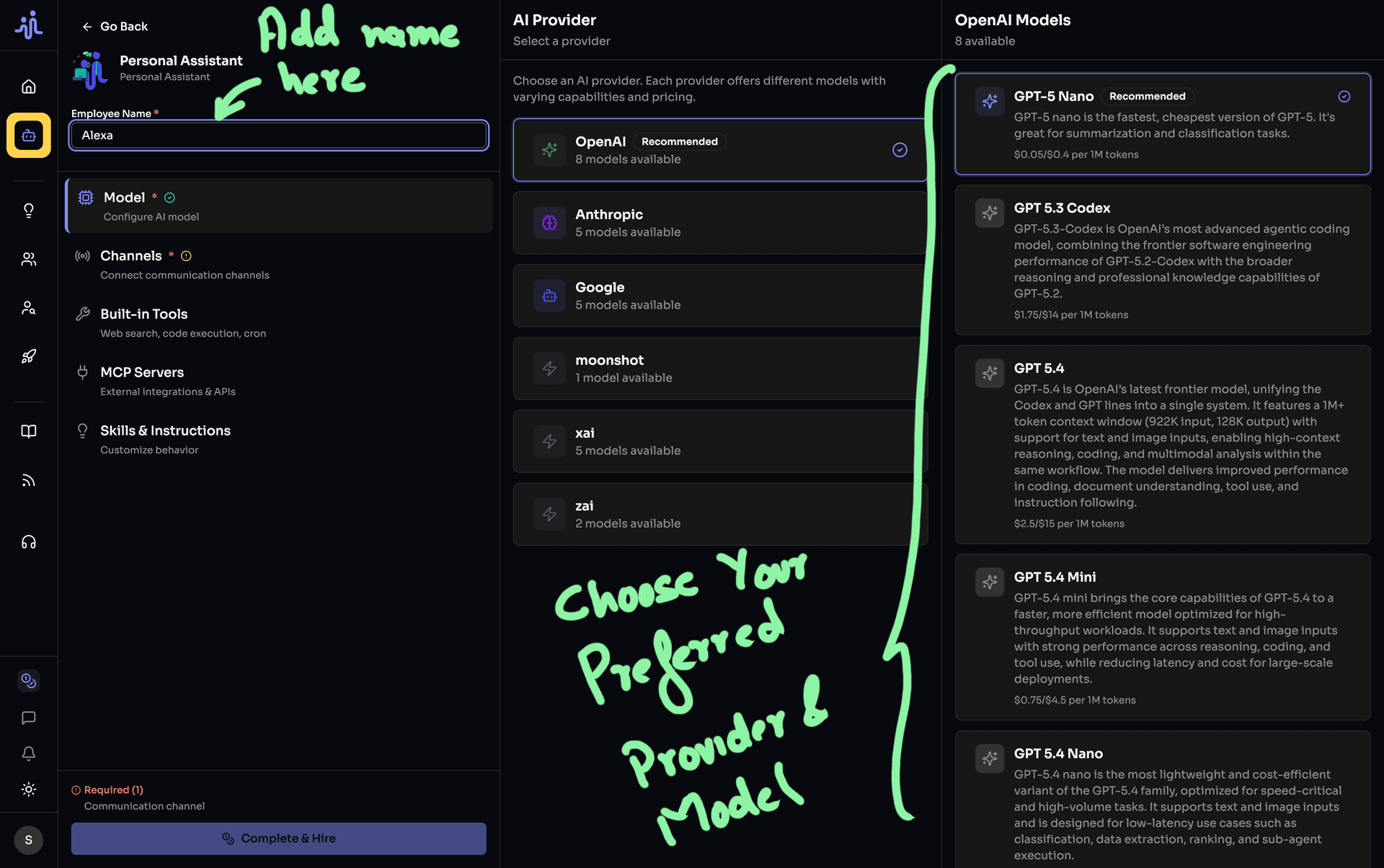
Configuration Steps
| Factor | Description |
|---|---|
| Speed | Faster models respond more quickly |
| Capability | More capable models handle complex tasks better |
| Cost | Different models consume tokens at different rates |
Tip: If you selected a template, it comes with a recommended model. You can change this anytime after hiring.
Step 4: Configure Channels
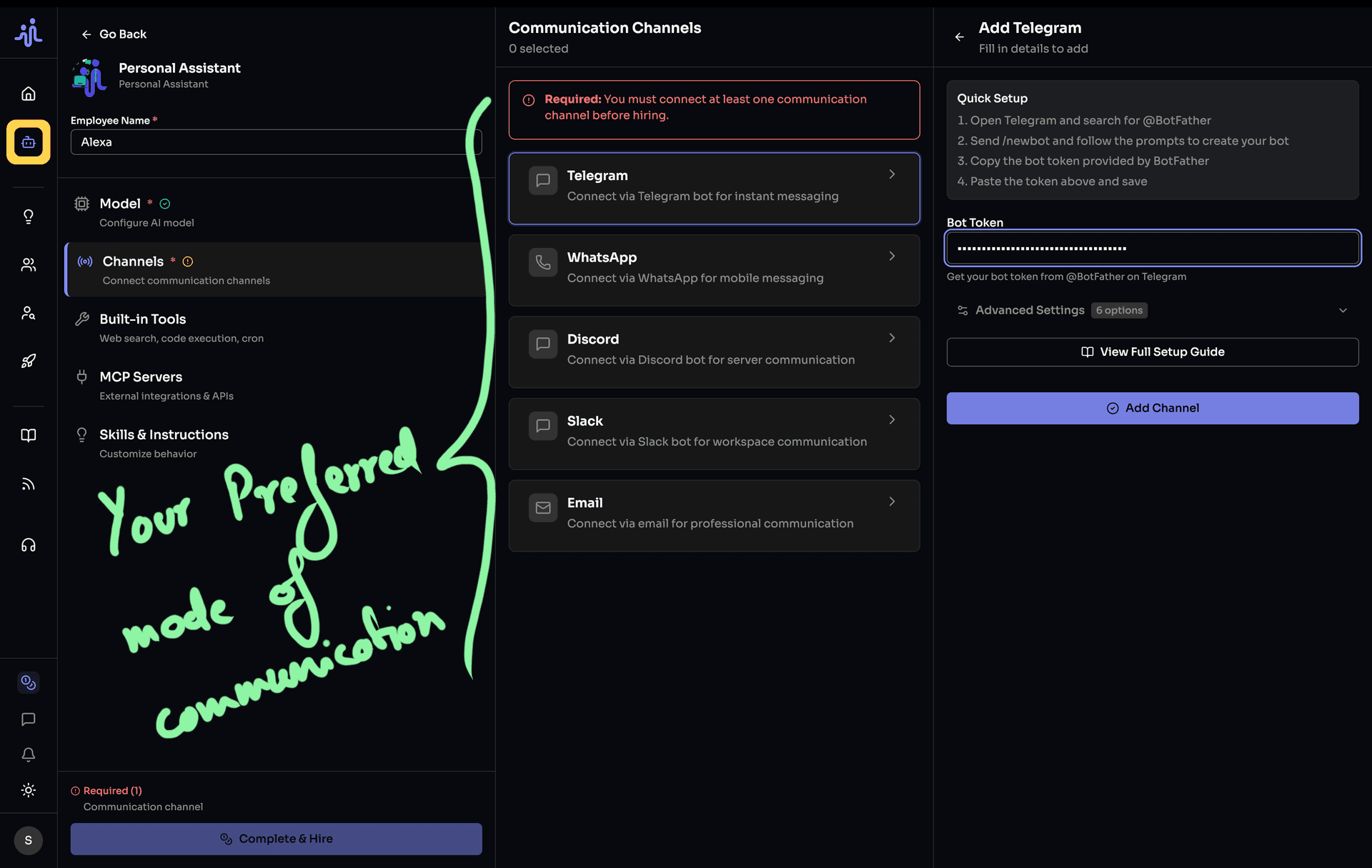
Your employee needs at least one communication channel to function. MakerClaw supports multiple chat platforms through a unified gateway system.
Supported Platforms
| Platform | Difficulty | Notes |
|---|---|---|
| Telegram | Easy | Recommended for beginners |
| Discord | Moderate | Requires Message Content Intent |
| Slack | Moderate | Dual-token setup |
| Moderate | QR code or bridge URL | |
| Moderate | SMTP configuration | |
| Matrix | Advanced | Homeserver setup |
| LINE | Advanced | Webhook configuration |
| DingTalk | Advanced | App credentials |
| WeCom | Advanced | Token + AES encryption |
| Feishu | Advanced | WebSocket/SDK mode |
Quick Start: Telegram (Recommended)
- Message @BotFather on Telegram
- Send
/newbotand follow prompts - Copy the bot token
- Paste in MakersFuel
- Add other information in advanced tab, if needed.
- Get your user ID from @userinfobot. Add to allowed users list (Optional)
Important: Each employee needs unique bot tokens. You cannot share tokens between employees.
Detailed Setup Guides
For step-by-step instructions for each platform, see:
Step 5: Add MCP Tools (Optional)
Extend your employee's capabilities with MCP server integrations.
From Marketplace
- Click Browse Marketplace
- Search or filter tools
- Click Install on desired tools
- Configure required API keys:
- Use Saved — Select from Security Vault
- Enter New — Paste and optionally save
- Complete installation
Common MCP Tools
| Tool | Category | What It Does |
|---|---|---|
| GitHub | Development | Manage repos, issues, PRs |
| Notion | Productivity | Create/read pages, databases |
| Slack | Communication | Send messages, read channels |
| PostgreSQL | Database | Query and manage databases |
| Brave Search | Search | Premium web search |
See Tools, MCP Servers & Skills for complete details.
Step 7: Add Skills (Optional)
Skills define your employee's behavior and knowledge.
Configure skills during hiring
Template Skills
If you chose a template, you'll see pre-configured skills. You can:
- Keep as-is — Use the template's default skills
- Edit — Modify to fit your needs
- Disable — Turn off skills you don't need
Adding Custom Skills
- Click Add Skill
- Choose Custom Skill
- Write your markdown instructions
- Save
Example Skill Structure
# Customer Support Agent

## Your Role
You are a friendly customer support agent for [Company].

## Guidelines
- Always greet customers warmly
- Acknowledge their issue before solving
- Use simple, clear language
- Offer to help with anything else

## Escalation Rules
Escalate to human support when:
- Customer requests human agent
- Issue involves refunds over $100
- Technical issue persists after 3 attempts
Step 8: Review and Hire
Before finalizing, review your complete configuration.
Review before hiring
Review Checklist
| Section | Check |
|---|---|
| Name | Descriptive and unique |
| Model | Appropriate for your use case |
| Channels | At least one configured |
| MCP Tools | All enabled tools configured |
| Skills | Relevant to your use case |
Validation
The system validates your configuration:
- ✅ Green — Ready to hire
- ⚠️ Yellow — Optional improvements
- ❌ Red — Must fix before hiring
Common Validation Issues
| Issue | Solution |
|---|---|
| "No channels configured" | Add at least one channel |
| "API key not selected" | Select an API key |
| "MCP tool needs configuration" | Configure or disable the tool |
| "Duplicate bot token" | Use unique token per employee |
Step 9: Complete Hiring
Click Hire Employee to start provisioning.
Employee being provisioned
What Happens
- Provisioning starts — Container being set up (30-60 seconds)
- Status updates — Watch the progress indicator
- Completion — Status changes to "Running"
- Redirect — Taken to employee details or list
Provisioning Status
Initializing container...
├── Setting up workspace
├── Configuring model
├── Connecting channels
├── Installing MCP servers
└── Applying skills

✅ Employee is now running!
✅ Employee is now running!
Step 10: Start Using Your Employee
Once running, start interacting!
Your employee is ready
First Interaction
- Open your channel (Telegram, Discord, etc.)
- Send a message to your employee
- Watch them respond based on their skills
Example First Messages
- "Hello! What can you help me with?"
- "Can you summarize your capabilities?"
- "Help me with [specific task]"
Troubleshooting
"No available employee slots"
No slots available error
Solutions:
- Terminate an existing employee
- Upgrade your subscription for more slots
"Invalid bot token"
Solutions:
- Double-check you copied the complete token
- Generate a new token from the platform
- Ensure no extra spaces before/after the token
"Provisioning failed"
Solutions:
- Check API key is valid and has credits
- Verify channel tokens are correct
- Try again in a few minutes
- Contact support if issue persists
"MCP tool configuration error"
Solutions:
- Ensure all required API keys are set
- Verify external service credentials
- Check service is operational
What's Next?
Your employee is running! Now learn to:
- Configuring Your Employee — Adjust settings anytime
- Employee Channels — Channel setup details
- Tools, MCP Servers & Skills — Add capabilities
- Managing Employees — Day-to-day management
What did you think of this content?